Hierarchical Groups
Looking for Standard Group Analytics? If you need flexible, independent group keys without an enforced hierarchy, see Standard Group Analytics instead.
Hierarchical Groups is a purpose-built data model for B2B products where users belong to companies. Mixpanel enforces a two-level hierarchy — Company (top level) and User (bottom level) — using the reserved properties $company_id and $user_id. This structure gives you native account-level analytics: count unique companies, measure per-account activation, and understand which accounts are healthy based on the behavior of their users.
Overview
Hierarchical Groups uses a two-level structure:
- Company level (top): Identified by
$company_id. Represents an account, organization, workspace, or any top-level entity. - User level (bottom): Identified by
$user_id. Represents an individual user within a company.
The relationship is many-to-one: each user belongs to exactly one company, but a company can have many users.
Composite Identity
In a Hierarchical Groups project, Mixpanel constructs the distinct_id from the composite key:
distinct_id = $company:<company_id>|$user:<user_id>This has a critical implication: $user_id is not globally unique. A user with $user_id: alice in $company_id: acme is a completely different user from $user_id: alice in $company_id: globe_inc. They will have separate profiles and their events will be counted independently.
Additionally, $company_id and $user_id must be set at the same time. Setting either property determines the canonical distinct_id for a user based on the composite properties available. If $company_id or $user_id are missing Mixpanel will generate a canonical user_id that does not include the missing property. For example, a user with $user_id: alice without a $company_id cannot be later attributed to the same user that is $user_id: alice in $company_id: acme.
How Analysis Works
When you analyze by Company, Mixpanel implicitly filters to events where $company_id is set and counts uniques by $company_id. When you analyze by User, it counts uniques by the composite distinct_id. Additional group keys you define (beyond $company_id and $user_id) also implicitly filter by $company_id. The additional group keys are defined by the composite of $company_id and <other_group_key> (team, org, etc.). The hierarchy will only ever extend one level company -> user or company -> other_group.
Advantages
- No more limits on group profiles per group key
- Group membership can apply retroactively for non-default groups (groups other than
$company_idand$user_id)
Limits
- 1M events per day per group identifier (e.g. $company_id = “Mixpanel”) - see Hot Shard Limits
- Group properties have similar limits as User properties
Prerequisites
Before enabling Hierarchical Groups, make sure you meet these requirements:
You must have a stable $company_id and $user_id value. You cannot use identity management to merge different composites of a $company_id and $user_id together. If you don’t yet know what value to use for these properties, we do not recommend enabling Hierarchical Groups. It is possible to merge anonymous events (only $device_id, no $company_id and $user_id properties set) to a $company_id and $user_id composite with Simplified ID merge (see Identity Management below).
You must use Simplified ID Merge. Hierarchical Groups is not supported on projects using Original ID Merge.
This is a project-creation-time decision. You cannot convert an existing standard project to Hierarchical Groups, and you cannot remove Hierarchical Groups from a project once enabled. Choose your model before sending any data. Existing projects would need to have their data migrated to a new Hierarchical project to work on this system.
Data Model
Events
For an event to be attributed properly, the event must include the $company_id, $user_id, and other group keys with values once they are known. Without the these properties on the event, Mixpanel will not attribute that event to a company/user/group properly.
{
  "event": "Purchase",
  "properties": {
    "time": 1690000000,
    "$company_id": "acme",
    "$user_id": "alice",
    "team_id": "engineering",    // team_id would be the other group key in this case
    "amount": 99.99
  }
}
In this example, if team_id is registered as an additional group key, this event will be attributed to company $company:acme, user $company:acme|$user:alice, and team $company:acme|$team_id:engineering.
Group Profiles
Group profiles are key-value stores of metadata about a specific group. They are identified by the combination of $company_id, group_key and group_id.
{
  "$company_id": "acme",
  "$group_key": "$company_id",
  "$group_id": "acme",
  "$set": {
    "$name": "Acme Corporation",
    "plan": "enterprise",
    "industry": "Technology",
    "employee_count": 500
  }
}
This example would be setting properties on the $company:acme company group profile.
Identity Management
Identity Management works only on the user level. In hierarchical groups, the canonical user identity is determined by the composite of the $company_id and $user_id values as soon as one of those value is set (so ideally they are set together at the same time). Events sent without $company_id and $user_id that have a $device_id value can later be merged to a canonical user identifier by having $company_id and $user_id set alongside the $device_id value on an event.
Merging the $device_id to the canonical $company_id and $user_id composite means that all events going forward and historically attributed to the $device_id would be merged to the composite identifier similar to how Simplified ID merge works outside of hierarchical groups. At present the merged events are only visible in the User level activity feed.
Implementation
Hierarchical groups can only be implemented via Data Warehouse Connectors or directly via the HTTP APIs. The groups methods in Mixpanel’s SDKs only support classic groups presently.
Group Keys in Project Settings
Group keys are project-specific. To administer group keys, navigate to your Project Settings. Click +Add Group Key under the Group Keys section.
- Navigate to your Project Settings (requires project owner or admin permissions)
- Click +Add Group Key under the Group Keys section
- Fill in the details on the group key (the exact name as data will be ingested) and the display name that will appear in Mixpanel
Once you hit save, a new row will appear in the Group Keys section with a new group ID (an ID autogenerated on our end, required for queries).
Tracking events for a Group
Import API
When sending events via the Import API, include $company_id and $user_id as event properties. The distinct_id property should also be present but Mixpanel will override it with the composite identity.
curl --request POST \
  --url 'https://api.mixpanel.com/import?strict=1&project_id=YOUR_PROJECT_ID' \
  --header 'Content-Type: application/json' \
  --header 'accept: application/json' \
  --header 'authorization: Basic YOUR_API_SECRET_BASE64' \
  --data '[
    {
      "event": "Feature Used",
      "properties": {
        "time": 1690000000,
        "$insert_id": "unique_event_id",
        "$company_id": "acme",
        "$user_id": "alice",
        "distinct_id": "placeholder",
        "feature_name": "dashboard"
      }
    }
  ]'
After ingestion, this event will have:
$company_id:acme$user_id:alicedistinct_id:$company:acme|$user:alice
Warehouse Connector: Events
When creating a Warehouse Connector for events:
- Create a new WHC as you normally would, but stop at the Map Columns step.
- Map the column containing your top-level identifier to Company ID.
- Map the column containing your user-level identifier to User ID. This mapping is required for Hierarchical Groups projects (it is optional in standard projects).
- Additional group properties must be set on the event but do not require any special mapping in the set up process.
- Complete the sync.
After the sync runs, verify that your events carry all three properties: $company_id, $user_id, and the auto-generated distinct_id in the format $company:<company_id>|$user:<user_id>.
Updating Group Profiles
Profiles store metadata about entity (company, user, and any other groups you have set up). They appear in the Users tab of the UI. At the top of the page you will see the groups that you’ve set up.
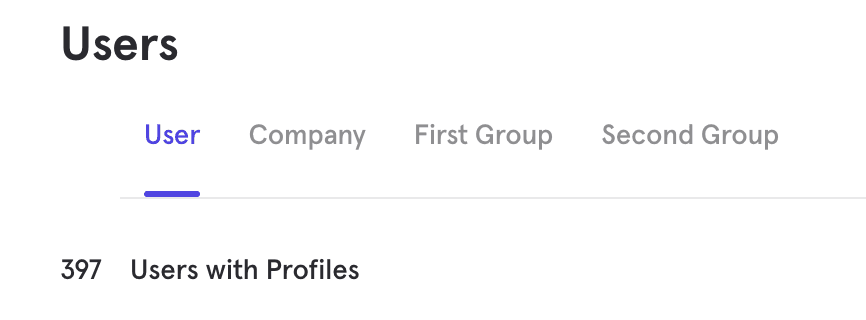
Groups HTTP API
To create or update company profiles via the HTTP API, use the /groups endpoint. There are three key values that must be set in order to properly set profiles for hierarchical groups (outside of $set) - $group_key, $group_id, and $company_id.
$group_key- this should be set to the name of the group key you want to set the profile properties to ($company_id,$user_id, etc.)$group_id- this should be set to the actual value of the group key you want to set those properties on (acme,user_123, etc.)$company_id- this should be the value of the parent$company_idassociated with this child entity (acme)
Company Profile Example:
curl --request POST \
  --url 'https://api.mixpanel.com/groups?strict=1' \
  --header 'Content-Type: application/json' \
  --data '[
    {
      "$token": "YOUR_PROJECT_TOKEN",
      "$group_key": "$company_id",
      "$group_id": "acme",
      "$company_id": "acme",
      "$set": {
        "$name": "Acme Corporation",
        "plan": "enterprise",
        "industry": "Technology",
        "arr": 120000
      }
    }
  ]'
User Profile Example:
curl --request POST \
  --url 'https://api.mixpanel.com/groups?strict=1' \
  --header 'Content-Type: application/json' \
  --data '[
    {
      "$token": "YOUR_PROJECT_TOKEN",
      "$group_key": "$user_id",
      "$group_id": "alice",
      "$company_id": "acme",
      "$set": {
        "$name": "Alice Smith",
        "role": "admin",
        "signup_date": "2024-01-15"
      }
    }
  ]'
Additional Group Key Example:
curl --request POST \
  --url 'https://api.mixpanel.com/groups?strict=1' \
  --header 'Content-Type: application/json' \
  --data '[
    {
      "$token": "YOUR_PROJECT_TOKEN",
      "$group_key": "team_id",
      "$group_id": "engineering",
      "$company_id": "acme",
      "$set": {
        "$name": "Engineering Team",
        "headcount": 25
      }
    }
  ]'
Important: The values of
$group_key,$group_id, and$company_idvalue should be the bare ID (e.g.,acme), not the prefixed form ($company:acme).
Warehouse Connector: Profiles
- Create a new Warehouse Connector and select Group Table as the source type.
- At the Map Columns step:
- Set Group Key to the group you want this sync to send profile data for (
$company_id,$user_id, etc.) - Set Group ID to the column containing your group identifier values.
- Set Company ID to the column containing the identifier values for
$company_id— this ensures the profile is correctly associated within the hierarchy.
- Set Group Key to the group you want this sync to send profile data for (
- Map any additional columns to profile properties.
- Create the sync.
After import, profiles will have a Distinct ID in the format $company:<company_id> if doing a $company_id sync, $company:<company_id>|$user:<user_id> for a user sync, or $company:<company_id>|<other_group_key>:<other_group_key_value> for other groups you’ve set up.
FAQ
Can I start with a standard project and switch to Hierarchical Groups later?
No. Hierarchical Groups must be enabled at project creation. If you later decide you need it, you would create a new project with Hierarchical Groups enabled and re-import your data with correct $company_id values on every historical event.
What happens if I send events without $company_id?
The event will still be ingested, but the distinct_id will not include the company prefix. The event will not appear in Company-level analysis. If you later send events for the same $user_id with a $company_id, Mixpanel will treat them as different users, resulting in split profiles.
Is the same $user_id in two different companies treated as two different users?
Yes. User identity is the composite key ($company_id, $user_id). An event with $company_id: acme and $user_id: alice is a completely different user from $company_id: globe_inc and $user_id: alice. They will have separate profiles and separate event histories.
Why do my user profiles not appear after a Warehouse Connector sync?
The most common causes are:
- You used a “User Table” source type instead of “Group Table.” User profiles in Hierarchical Groups must use the Group Table type.
- The
$user_idand$company_idvalues in the profile sync don’t match the values on your events, so they’re creating profiles that don’t correspond to any event data.
Does Hierarchical Groups work with Original ID Merge No. Hierarchical Groups requires Simplified ID Merge. If your project uses Original ID Merge, it is not compatible.
Was this page useful?